Support
One change
Draw one thing, choose one time skip, describe what changed in one sentence. Younger pupils can work on the board with the teacher.
Game Tailors
Source: Digital literacy for kids: making, not scrolling
The drawing app where the paper is real. No ads, no accounts, no data collected.
Game Tailors · Schieweg 15Y-40, 2627 AN Delft (NL)
KvK 92437702 · VAT NL866044474B01
info@gametailors.com · +31 6 4227 5919
© 2026 Game Tailors
Lesson plan
Digital creativity means using a screen to make something of your own instead of only watching. Extreme Drawing is an open drawing app with no ads, no accounts, no data and no scores. In this 40-minute lesson pupils make a picture, change it with an experiment, then compare digital paper with real paper and talk about ads and personal information.
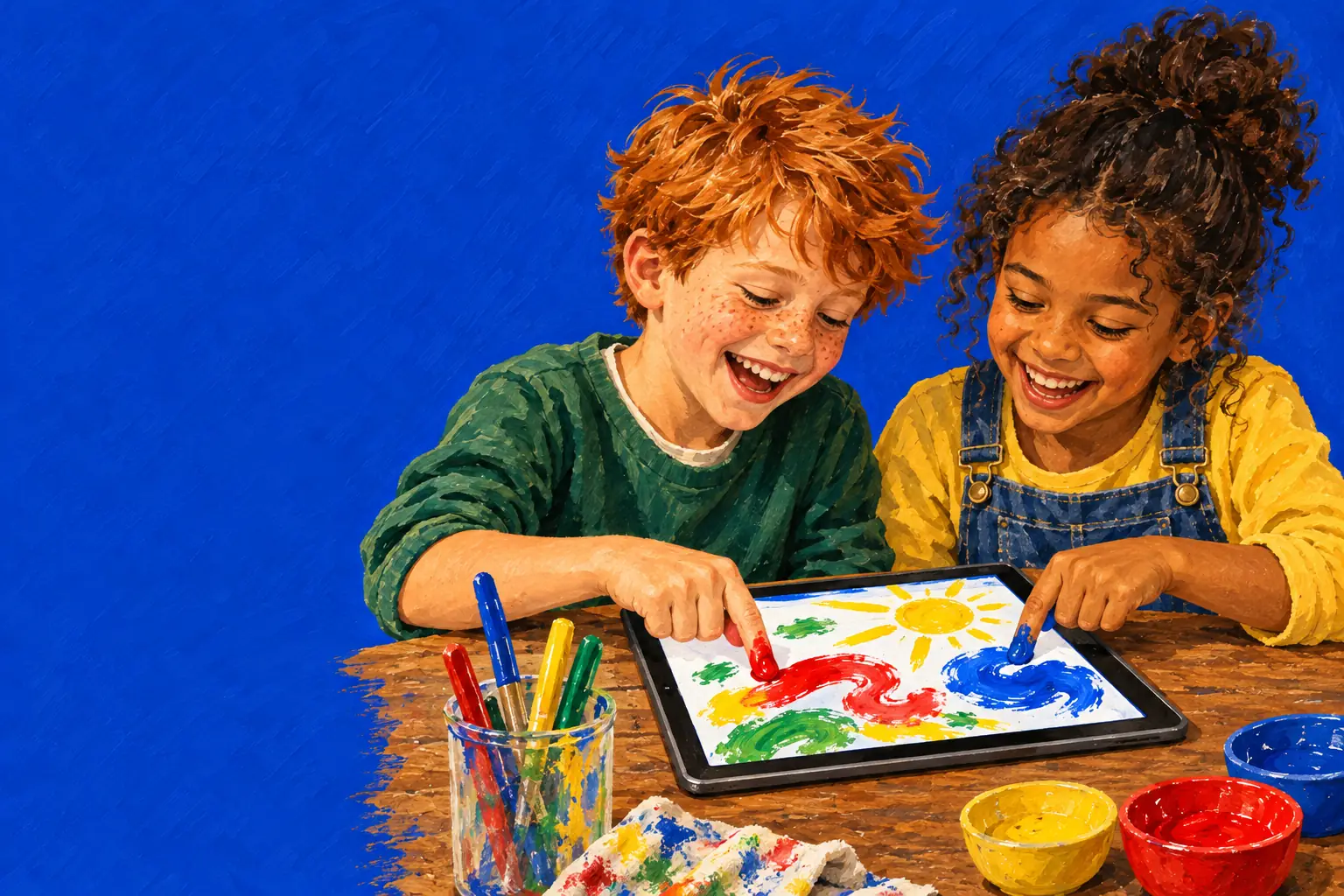
Objective: pupils use a digital tool on purpose to create and change their own picture, and can say how a digital tool differs from real materials and what it does (or doesn't) ask of them.
Success criteria
I can plan a picture and make it on the screen.
I can change my picture and undo a change.
I can name one thing the screen does better and one thing real paper does better.
I can explain why I never type my name, address or school into a game.
England, KS1 computing: use technology purposefully to create, organise, store, manipulate and retrieve digital content; use technology safely and respectfully, keeping personal information private.
England, KS2 computing: use technology safely, respectfully and responsibly.
England, KS1/KS2 art and design: develop techniques with colour, pattern, texture, line and shape.
Netherlands, digitale geletterdheid: SLO describes four parts: ICT basic skills, media literacy (mediawijsheid), information skills and computational thinking. This lesson touches the first two. In the new kerndoelen, digital literacy becomes a learning area of its own.
It's a blank sheet, not a feed. There's nothing to watch and nothing that plays next. The pupil decides what happens.
No ads, no accounts, no data. Nobody logs in and the app collects nothing, which makes it a safe example to start the conversation about the apps that do.
Changes are visible and undoable. Bake the picture, freeze it, leave it three days, then press Undo (up to four steps back) and try something else. That's editing, in its simplest form.
No scores, levels or timers. There's no right answer, so pupils compare choices instead of results.
Two at once. Several fingers can draw at the same time, so pairs can make one picture together; they share the tool that is picked, which means agreeing on it first.
Set up before the lesson: the browser version open on the board (or on the tablets), a fresh sheet, and the real art materials on each table.
5 minutes
Ask the class what they did on a screen yesterday. Sort the answers on the board into three columns: watching, playing, making. Which column is shortest?
5 minutes
Pairs sketch on paper a picture that something will happen to: a birthday cake that goes in the oven, a picnic left out for three days, a snowman for the freezer. One sentence: we think it will…
15 minutes
Pairs draw their picture with Crayon, Paint and Watercolour, add food from the Kitchen, then use one time skip: Bake in the oven, Put in the freezer or Wait 3 days. Not what they wanted? Undo and try another. Keep the finished page with Keep this drawing in My drawings.
10 minutes
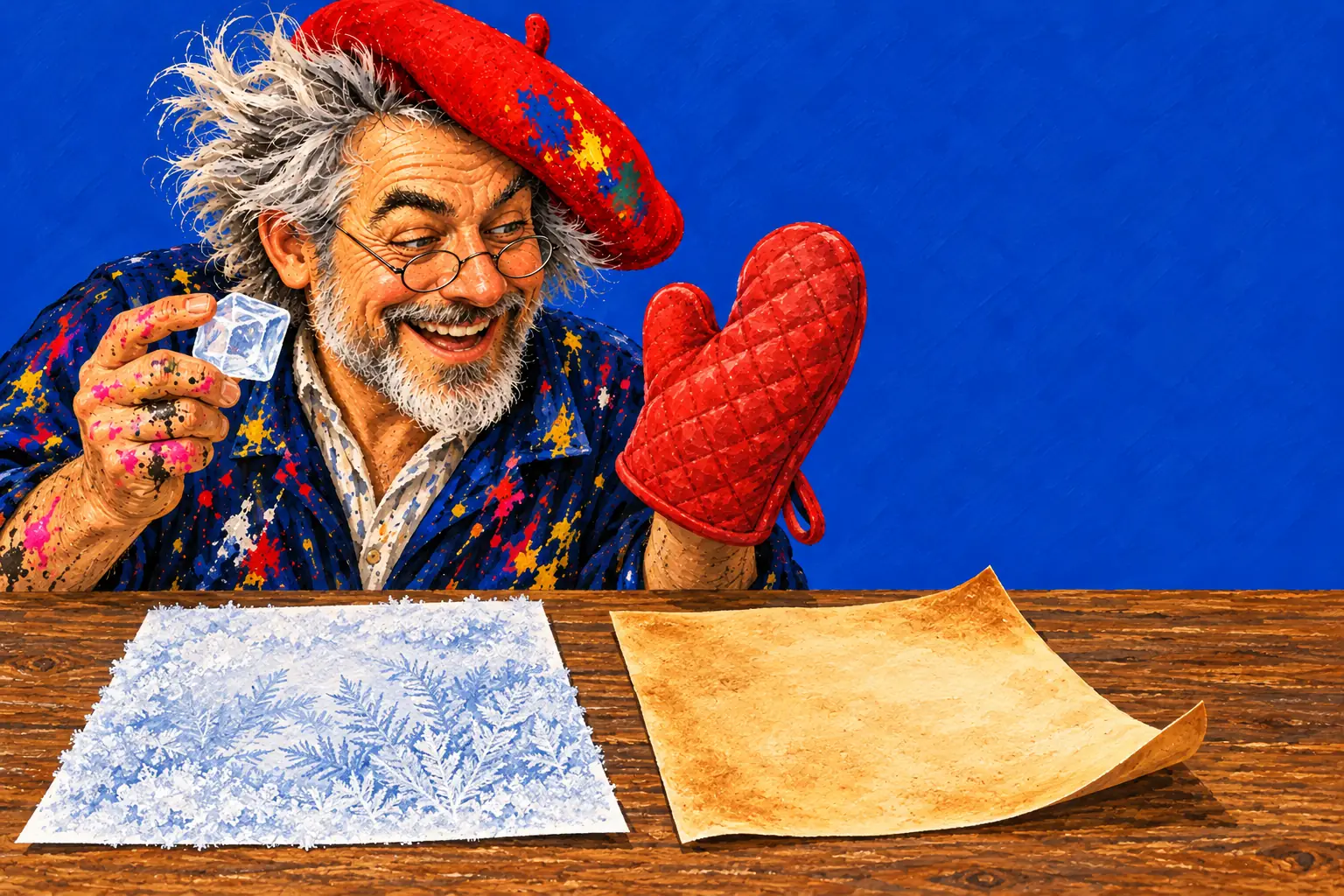
On real paper, draw part of the picture in white crayon, then paint watercolour over it: the wax keeps the paint off and the drawing appears. Then compare: what could the screen do that real paper can't (bake it safely, three days in a second, undo)? What can real paper do that the screen can't (feel it, smell the paint, put it on the fridge)?
5 minutes
Did the app ask for your name? Did it show you an ad? Talk about apps that do, how to spot an ad, and why you never type your name, address or school into a game. Exit question: what will you make next time you have a screen?
Key words
digital: made and kept on a computer or tablet
create / consume: making something yourself / watching or using what others made
edit: change something you made
undo: go back a step
simulation: a computer copy of how something really behaves
personal information: your name, address, school, photos
advert (ad): something made to get you to buy or want something
Using a digital tool to make something of your own, such as a picture, a story or a model, and to change and improve it, instead of only watching or playing what others made.
It touches two of SLO's four parts: basic ICT skills (making, editing, undoing and saving digital work) and media literacy (spotting ads, keeping personal information private).
No. Nobody logs in, the app collects no personal data and shows no ads, so there's nothing to set up or clear beforehand.
Yes. Keep this drawing stores a page in My drawings on that device, and in the browser Save picture downloads it as a large image you can print.
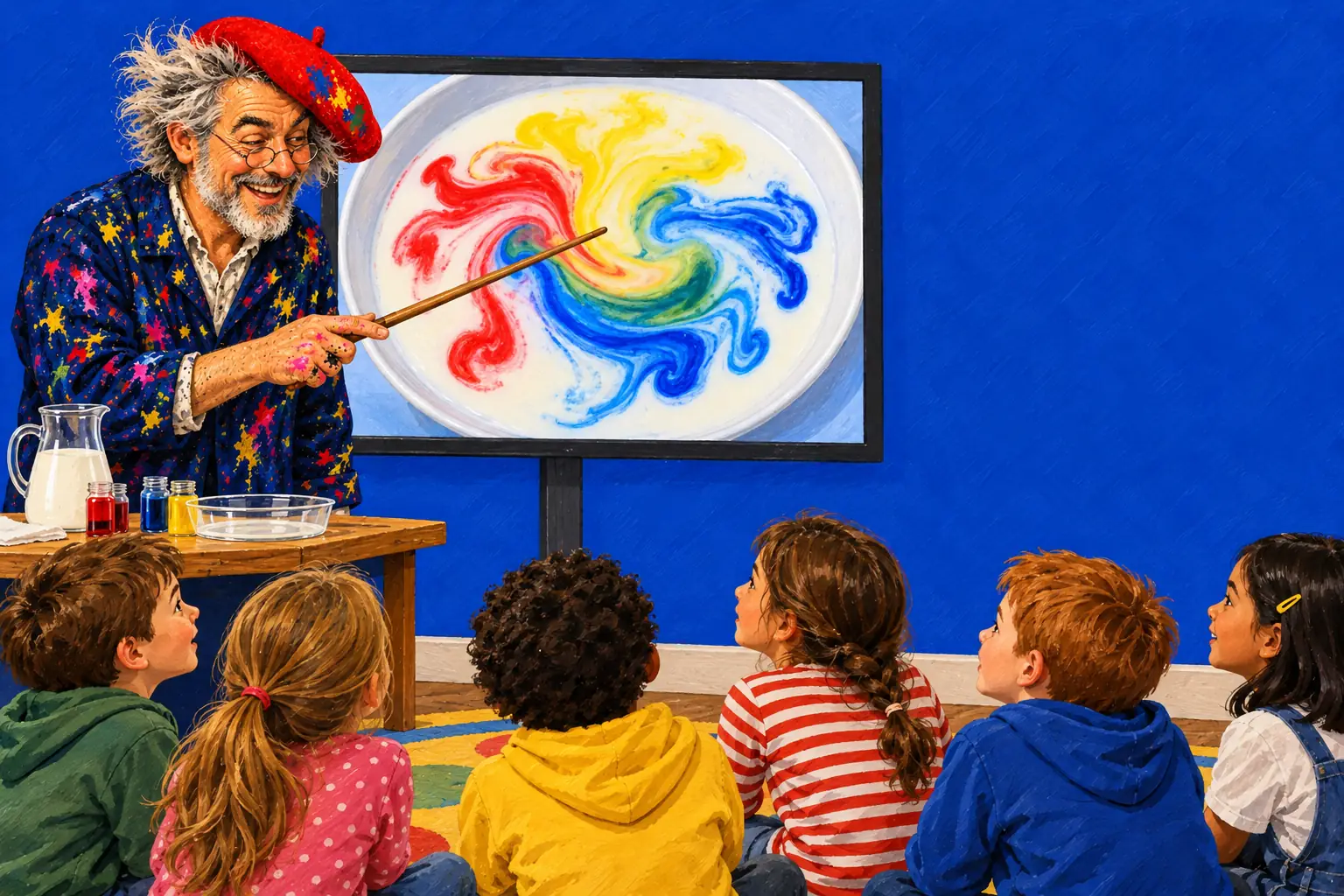
Setup, a predict-try-explain routine and six starters.
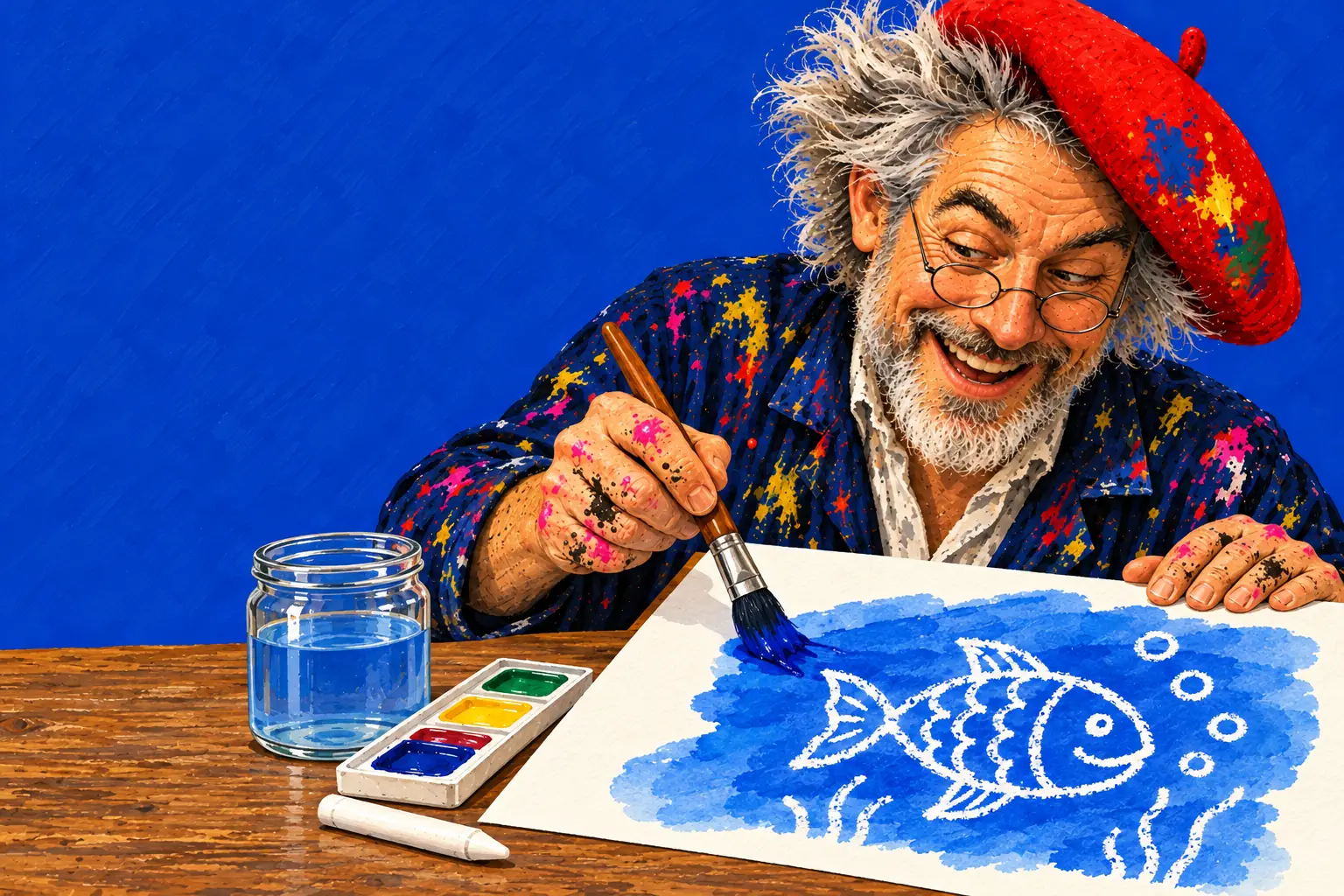
The real wax-and-watercolour technique from step four.
Freezer against oven, as a science lesson.